We know that we are still finding our way around the new site and we are missing one or two features that we had on the old site (they will come back in time). But what NEW FAB FEATURES have you found!
A little more advanced, hop over this if it looks complicated, but feel free to try it out if you want!
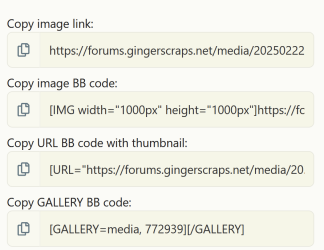
In the gallery, on your layouts, you will see the following on the right. It is one of four options. Each copies your layouts in a different way. Click the double paper on the left, then paste it into the image link in your target thread (such as the challenge thread).
This one copies the link image link. You can do the same thing by right-clicking on the image and selecting "Copy Image Link." It is just a quicker way to do it.
A little more advanced, hop over this if it looks complicated, but feel free to try it out if you want!
In the gallery, on your layouts, you will see the following on the right. It is one of four options. Each copies your layouts in a different way. Click the double paper on the left, then paste it into your target thread (such as the challenge thread).
This copies just the image with no links. You can change the width and height of the image, so if 1000px by 1000px seems too big, you can change it to 600px by 600px.
A little more advanced, hop over this if it looks complicated, but feel free to try it out if you want!
In the gallery, on your layouts, you will see the following on the right. It is one of four options. Each copies your layouts in a different way. Click the double paper on the left, then paste it into your target thread (such as the challenge thread).
This one copies your image with a thumbnail and links back to your gallery. When you paste it, you will see some html code. It defaults to a 300x300 image, but you can change that to 600x600 if you like.
A little more advanced, hop over this if it looks complicated, but feel free to try it out if you want!
In the gallery, on your layouts, you will see the following on the right. It is one of four options. Each copies your layouts in a different way. Click the double paper on the left, then paste it into your target thread (such as the challenge thread).
This one copies your gallery image and the description and links back to your page in the gallery. It it set at whatever image size you uploaded.
You can turn a layout into an Avatar!! I love this feature and can't WAIT to try it out! If you open a layout, you will see this on the right:
If you click the drop-down by the three dots, you will see the option to set your layout as an avatar!
If you click search on the right, then click advanced search:
You have some pretty powerful Search Tools:
Search Everything, Threads, Media, Albums, Media Comments, Profile Posts, Direct Messages.
BE AWARE, THOUGH, THAT THE SEARCH IS ONLY CURRENTLY WORKING ON STUFF SINCE THE CONVERSION TO THE NEW SYSTEM. IN TIME, IT MIGHT INCLUDE OLDER STUFF, BUT FOR NOW IT IS STILL AWESOME.
This thread is so fun!! You have discovered some things I have not even learned yet! I'm so busy behind the scenes, I haven't gotten to play much yet. But so far I have found it to be super user friendly. I think my two favorite things are that you can reply to a gallery comment and the whole DM inbox system is awesome!
I will make some tutorials soon!
NOTIFICATIONS FOR COMMENTS ON YOUR LAYOUTS!!!
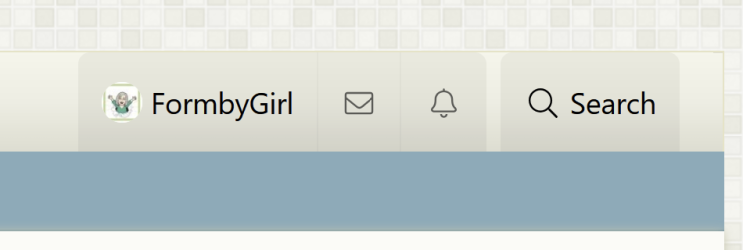
You can set your preferences to see comments on your layouts, new posts in your favourite forums and all kinds of stuff! At the top right, you will see your username, the envelope for your Direct Messages (used to be Private Messages), then the Notification Bell!
If you are not seeing notifications on your comments, check the following:
Under the bell, at the bottom, there is a preferences button. Make sure that you have automatically watch content you create checked.
This also needs to be checked.
You can get notifications on so much stuff!! I unchecked some of the items, such as reactions because I was being notified of so many fun things! You can tweak these as much as you want until you are getting just the right number of notifications
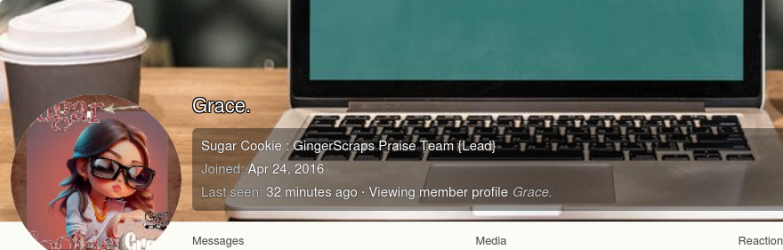
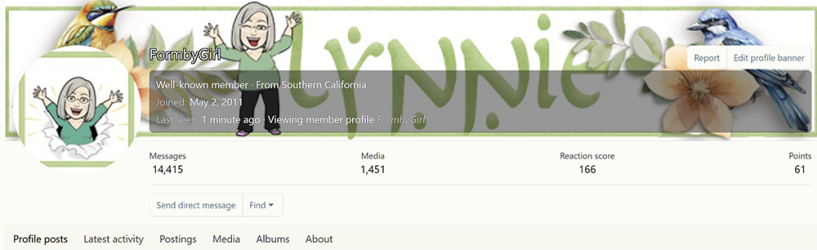
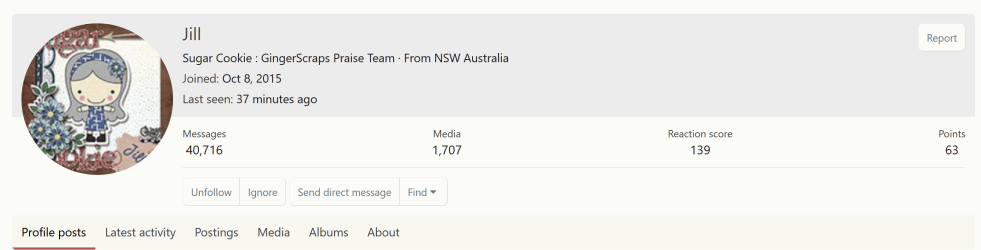
Scrapper's Information. If you click on a user's name, you will see the following (you might have to click their name again in the popup)
if you click on
"Messages" you will see all the user's posts in the forums. If you are looking at yours, you will also see any Direct (Private) messages you have made. Others cannot see those, except for the person you are messaging.
"Media," you will see the user's gallery and you can comment on their pages.
"Profile Posts," you can post a message to the user profile. Sort of like Direct Messages, but they are public.
"Latest Activity" you will see all the user's latest activity, including posts to their gallery, comments on layouts, posts in forums & reactions.
"Postings" you will see posts the user has made. It is like "messages"
"Media," you will see the user's gallery and you can comment on their pages.
"Albums" shows you any albums the user has created. Probably not too many users will have albums
"About" shows you the users "about" that they have filled out in their profile, their signature, how to contact them, etc.
Save a layout directly to Pinterest from the Gallery. CT Folks will like this one!!
If you are in your gallery with a layout open, if you hover the mouse in the top left of the picture you will see a "Pinterest Save" Icon. You can click on that, login to Pinterest and save that page to whatever board you choose. It will automatically create a link on the page name.
Cutting and pasting images into the forum is kinda awesome! This is for Windows, but something similar will be available in Apple. This is how I have added all the screen images in these posts. You can also use it to show us the latest picture of your new child, grandchild, puppy, holiday. There is no end to the uses.
Windows has a SNIPPING tool. You can search for it. Mine is pinned to my taskbar:
When you click it, it will open up a popup. Click the plus and you can cut and paste a section of your open window.
When you have copied something, you can click CTRL V to paste it into your forum post.
I love that you can reply to a gallery comment. Also, I am an emoji junkie. So the new, additional ones are great fun. I still have lots to discover though...
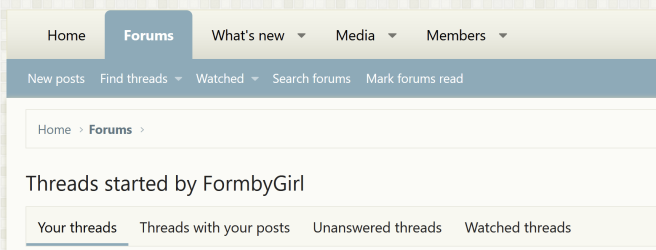
Under "Forums" you will see "Find Threads." If you click on that, you will see this:
"Your Threads" shows everything you started
"Threads with your posts" shows all threads in which you have posted
"Unanswered Threads" are all threads with zero responses
"Watched Threads" are all threads you are watching.
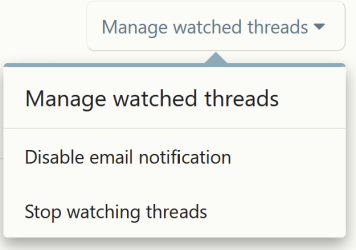
You can manage "Watched Threads" if you like. When you click "Watched Threads" there will be a "Managed Watched Threads" button on the right. If you click this, you can "Disable email notifications." If you don't want to watch all these threads, you can "Stop watching threads." This will clear the list until you watch another thread.
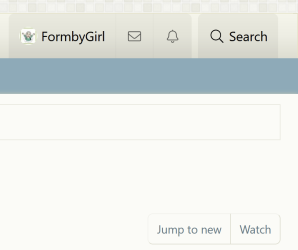
If you want to 'watch' a thread, then you will click the "Watch Thread" button at the top of any page of posts in a threads:
The thread will now appear in your "Watched threads"
NOTE: there is an option in the preferences under notifications to watch all threads you interact with. This means if you post in a thread it will become 'Watched." I have unchecked this and only "Watch" those threads I really want to see in my notifications.
Another really AWESOME enhancement is the use of Shortcut Keys for some of the icons above!
For a PC, you can do the following. Not sure what the equivalent is on a Mac, but there is one To add a link you can click CTRL K To add an image, you can click CTRL P
This site uses cookies to help personalise content, tailor your experience and to keep you logged in if you register.
By continuing to use this site, you are consenting to our use of cookies.