gadawg83
Member
Hello Friends!
I'm at my wits end with these computers! My old trusty finally gave it up last NOVEMBER, and I have been trying since January to figure out what I'm not doing and/or doing wrong with this (not so new anymore) system. I changed from PSE 13, which I was comfortable with and could do what I needed to with it. When I set the new one up, I subscribed to PSE 2024. I can NOT for the life of me figure out why my photos and masks won't merge on my workspace. I have spent countless hours with Adobe and PSE tutorials looking for answers. I'm having withdrawals not being able to do my pages anymore, not to mention all the photos are backing up again when I almost had them under control before the meltdown of 2024! I was hoping one of you lovelies would maybe have a suggestion to get me going again!
It seems to me like a simple, basic function of PSE, so I'm hoping it's a "me" problem, and it's something easy and idiotic that I'm not doing, and someone can set me straight!
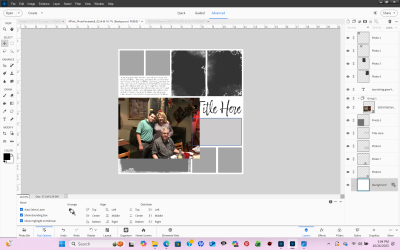
It looks to me like they are merged on the layers panel, but not in the workspace. I can't do anything with it but resize the photo.
Thank you!
With Love, Anna
I'm at my wits end with these computers! My old trusty finally gave it up last NOVEMBER, and I have been trying since January to figure out what I'm not doing and/or doing wrong with this (not so new anymore) system. I changed from PSE 13, which I was comfortable with and could do what I needed to with it. When I set the new one up, I subscribed to PSE 2024. I can NOT for the life of me figure out why my photos and masks won't merge on my workspace. I have spent countless hours with Adobe and PSE tutorials looking for answers. I'm having withdrawals not being able to do my pages anymore, not to mention all the photos are backing up again when I almost had them under control before the meltdown of 2024! I was hoping one of you lovelies would maybe have a suggestion to get me going again!
It seems to me like a simple, basic function of PSE, so I'm hoping it's a "me" problem, and it's something easy and idiotic that I'm not doing, and someone can set me straight!
It looks to me like they are merged on the layers panel, but not in the workspace. I can't do anything with it but resize the photo.
Thank you!
With Love, Anna