• 🆘 Need Help? We’re Here for You!

    Have a question or need assistance? You’re in the right place! Whether you're new to GingerScraps or just need a little guidance, feel free to ask here. Our amazing admins and helpful community members are always happy to lend a hand. 💖

    Be sure to check out these helpful areas too:

    🔧 If you’re having trouble with an order or product download, please visit our Support Desk - we’re happy to help!

siggy question...

dodgeladee

New member
Ok... so I am seeing big beautiful siggies, and then I look at mine and it is little bitty... So, here is my question... when you start out making your siggy, do you have the beginning background the size that it needs to be (the 700x150) or, do you start it out BIG (like 12x12) and then resize it to the 700x150? I know how to resize all the pieces, but I can't figure out why mine isn't BIG and BEAUTIFUL???
 
Many of the big and beautiful ones are out of the siggies guidelines.

For example here is a screen shot with your siggie. yours could be a little larger, but not much.

siggiequestion.png


As for how you do it, whether you shrink each piece or start large and shrink the whole thing is person preference. Does this help any??
 
Last edited:
I start with a 3600x3600 canvas, mainly because I hate resizing every element but then I crop it to 700x150 (still at 300 dpi) then I "work my magic". Before I upload I use "Save for Web and Devices" to make it fit the accepted dimensions and save it at 72 dpi.

:innocentsmily: ...there are quite a few siggies out there that are larger than they should be but apparently the law hasn't busted then yet. :bullwhip:
 
Missi... it does help. I keep seeing how small the font is and I can't for the life of me figure out how to make it more legible other than to make the font bigger to start with. Maybe it is my choice of fonts... I guess for next month I will continue to play with it.

Lisa.. thanks for the tip. Can I ask why you save it to 72dpi? Should I be doing that?
 
To me, (after some SERIOUS studying) the top one looks clearer, but honestly there isn't much difference. I love how you whipped it together in 20 minutes... that is some serious talent right there... that takes me HOURS!!!
 
I can't tell the difference! Well that's good the know, thanks Missi! I guess I'll skip the dpi change from now on!
 
I start mine on the right canvas size, otherwise, I know I'll go all crazy and end up out of bounds, lol!! I keep my canvas at 300 though.
 
I usually start with the right size canvas, place everything then shrink it all at once. PITA!!

For these I started with 700x150. Then enlarged to 3600x771 (Yes Sarah, I checked that lol), created the siggie, then shrunk (is that right?) it back to 700x150. SO much easier! This will be what I do for now on!
 
I usually start with the right size canvas, place everything then shrink it all at once. PITA!!

For these I started with 700x150. Then enlarged to 3600x771 (Yes Sarah, I checked that lol), created the siggie, then shrunk (is that right?) it back to 700x150. SO much easier! This will be what I do for now on!

:P

And that's exactly what I do :D
 
Okay... can you explain that to me again? I am confused about the start out 700x150 then enlarge it thing. I start out at 700x150 then shrink all the elements to fit... It would be awesome not to have to shrink every single element ESPECIALLY when your name is as long as mine!
 
Ok, ignore earlier post! If you start with 3600x771 create the siggie, then shrink to 700x150 it will be perfect!! You will only have to resize tall elements this way. For example, I still had to resize the tree, the tire swing, etc.
 
Okay... can you explain that to me again? I am confused about the start out 700x150 then enlarge it thing. I start out at 700x150 then shrink all the elements to fit... It would be awesome not to have to shrink every single element ESPECIALLY when your name is as long as mine!

I always start with the size I need it to be in the first place, because I tend to get all confused if I start with the bigger size first hehe
 
i start mine with a transparent canvas the exact pixel size allowed, then i just shrink the elements. it really isn't that difficult or time-consuming and it keeps me from going crazy and making it too big, like laura said! hehe
 
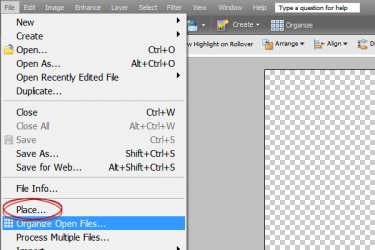
I use the "place" feature rather than opening and dragging my elements onto the canvas. This automatically puts them on my canvas in proportion to the canvas size. I might have to make a few things smaller, but they start out within the canvas boundaries and not huge.
 
Tell me more!!! What is this "place" feature you speak of???

I use the "place" feature rather than opening and dragging my elements onto the canvas. This automatically puts them on my canvas in proportion to the canvas size. I might have to make a few things smaller, but they start out within the canvas boundaries and not huge.
 
I use Photshop Elements 5.0. I go to File - Place instead of File- Open to directly insert elements. Here's a screenshot:

Place feature..jpg

Ocassionally I'll run across an element that is itty bitty when I place it and I'll think to myself, "Surely the designer did not make this this small!" In those cases, I open the element and drag it onto the canvas. It's usually because they forgot to remove the extra pixels around it. But that rarely happens.

I use the place feature all the time for everything except photos (when making an LO). I always want them to start off at their largest size. When making a siggiy, however, I use "Place" for everything!
 
Ok, so Tricia, do you start with the right size canvas to start with and then do a PLACE? AND, do you just click on the element so it is highlighted and then go to file and place? Just want to make sure I understand because I want EASY too!
 
Start with the size of canvas you want to end with (so the specs in the siggie guidelines in this case). From you blank canvas, go to File-Place and choose the element you want, double click on it or choose open and it will "plop" itself onto your canvas. Easy Peasy!
 
I've only ever used placed to put an element/paper on a LO. For those of you who didn't use the place option, how did you do it?
 
Mine won't let me place multiple items at once, so I'm not sure if it saves any time or not. Neat trick though!
 
Back
Top